If you search for how to order notes wordpress theme help, you probably want one of three things: to let buyers leave a note with an order, to read those notes easily, or to keep your own private notes about a customer. This guide covers all three in plain steps.
The words are used loosely online, so it helps to start with clear terms. Once you know which kind of note you need, the setup is quick. The examples below suit a small shop in Bangladesh, with orders coming from Facebook, cash on delivery and bKash payments.
How to order notes wordpress theme: what the phrase means
Order notes are short messages attached to an order. In a WordPress shop, they can come from three places, and each has a different reader.
- Customer order notes: the buyer types a message at checkout, for example "Please call before delivery".
- Private order notes: your team writes a message on the order, such as "Payment confirmed by bKash".
- Customer notes on a profile: your team keeps a private note about a buyer that follows them across all orders.
The theme controls how the checkout looks, but the notes themselves come from your shop system and any plugin you add. A good theme shows the note box in the right place and keeps it easy to read on a phone.
The note box on the checkout page
In WooCommerce, the note box usually has a label like "Order notes (optional)" and a placeholder asking for special delivery requests. Buyers can use it for many things:
- A preferred delivery time
- A landmark near the address
- A gift message
- A question about the product
- A request to call before delivery
Make the label specific. "Delivery note" gets clearer answers than "Notes". Add an example in the placeholder, such as "Near the mosque, 3rd floor, call on arrival".
Where to read order notes in the admin
When a buyer writes a note, you need to see it at the moment you prepare the parcel. Follow this path:
- Open WooCommerce, then Orders.
- Click the order number.
- Look for the customer provided note in the shipping section of the order screen.
- Check the Order notes box on the right for notes added by your team.
Many shops miss this because the buyer's message sits in a small spot. Train your packing team to check it for every order. A missed note becomes a missed delivery time.
Adding your own private order notes
Your team can write private notes on any order. These are not seen by customers unless you choose "Note to customer". Use them to build a short history of the order.
Good examples:
- "Buyer called, will receive after 6 pm."
- "Paid by bKash, transaction confirmed."
- "Second delivery attempt on Thursday."
- "Replacement sent, old item returned."
Write notes in short plain sentences with a date and your initials if several people use the screen. Do not write opinions about the buyer.
How to remove order notes from WooCommerce checkout
Some shops do not need the note box at all. Buyers type long messages nobody reads, or the box adds clutter on a small phone screen. If you decide to hide it, here is how to remove order notes from WooCommerce checkout.
- Block checkout: open the checkout page in the editor, select the Checkout block, then the order note part, and switch off the option to add a note. Save the page.
- Classic checkout: add a short code snippet that sets the filter woocommerce_enable_order_notes_field to false. Use a snippet plugin or your child theme, never edit the main theme files directly.
Always back up your site first, then place a test order. Clear any cache so the old form does not remain on screen.
Before you remove the box, ask whether you would lose useful information. If buyers often send delivery times in that box, keep it and rename the label, or replace it with a clearer delivery field.
Real situations where notes save the day
Notes matter most when something unusual happens. These cases are common in Bangladeshi online shops.
The Facebook order
A buyer sends a message on Facebook and your helper types the order into the site. The buyer asked for delivery after Maghrib. If that sentence only lives in the chat, the packing team never sees it. Put it in the order note so it travels with the parcel.
The repeat customer with a size
A regular buyer always takes size L in your shirts, but L in one brand fits like M. You learned this after one exchange. A line on the profile prevents the same exchange next time.
The difficult address
A courier once spent an hour finding a house behind a school. The directions go on the profile: "Gate beside the tailor shop, ring the bell twice". Every future rider gets the same help.
The payment habit
Some buyers always pay by bKash before dispatch. Others prefer cash on delivery and sometimes refuse the parcel. A short note such as "Advance payment only" saves you from risky orders.
How to order notes wordpress theme layouts display on mobile
Most of your buyers use a phone, so the note box must work well on a small screen. Test these points on your own phone:
- Is the box visible without scrolling too far?
- Is the label clear and the placeholder helpful?
- Can you type a full sentence without the keyboard hiding the box?
- Does the order confirmation page show the note back to the buyer?
- Does the note appear in full on the admin order screen?
If anything looks cramped, ask the theme author or adjust the label to be shorter. A box that is hard to use gets ignored, and then you lose the information you wanted.
Order notes versus customer notes
These two names sound alike but do different jobs. Mixing them up causes confusion.
- Order notes belong to one order. They describe one purchase.
- Customer notes belong to a person. They describe the buyer and stay on their profile for every future order.
An order note says "Deliver after 6 pm on Friday". A customer note says "Usually wants the larger size, prefers evening delivery, paid in advance last time". The second kind saves you from asking the same questions again.
Why private customer notes help a small team
In a one-person shop, the owner remembers the regulars. Once two or three people handle orders, memory gets split. A packing helper does not know that a buyer had a damaged parcel last month. The person on the phone does not know the buyer prefers a call, not a text.
A shared private note fixes this. Whatever one person learns, everyone can read next time. It also helps when a staff member is on leave, since the knowledge stays on the profile and not in someone's head.
What to write in a customer note
Keep each note short and useful. Think about facts that change how you serve the buyer.
- Sizes and fits that worked
- Favourite colours or brands
- Best time to call
- A landmark the courier always needs
- Payment habit, for example "pays in advance by bKash"
- Past problems and how you solved them, such as "parcel arrived damaged, replacement sent"
Avoid opinions. Do not write anything you would not want the customer to read if the note ever came out. Stick to facts that help the next order go smoothly.
A ready-made option for private notes
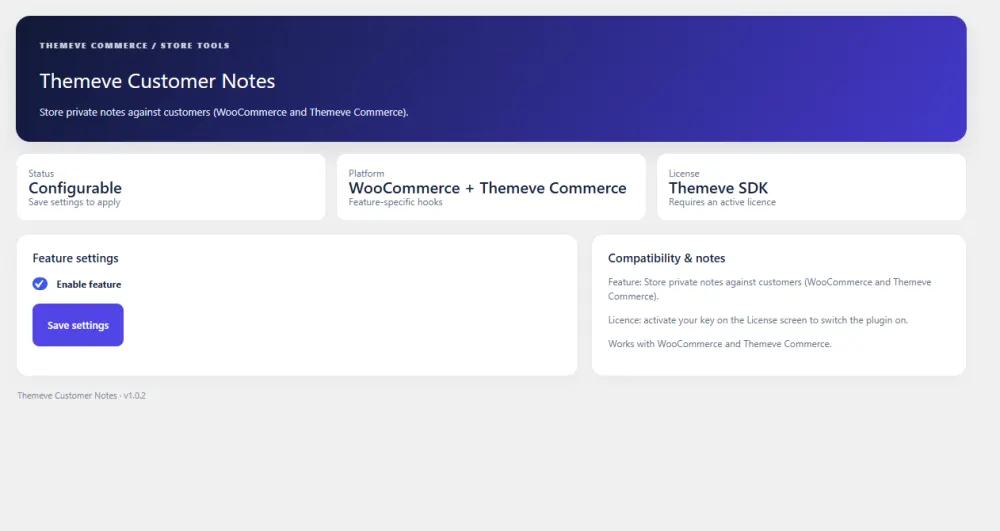
If you want to keep these notes inside WordPress, Customer Notes adds a private note field to each customer profile in the admin. The note is visible to staff only. Customers never see it, not on their account page, not in emails and not on invoices.
The note follows the customer across every order. On Themeve Commerce stores, a side box on the order screen shows the note, so your packing team reads it right beside the order.
On WooCommerce stores the note lives on the customer profile. Notes belong to customer accounts, so guest buyers without an account have no profile to attach a note to. It has an on/off switch and no setup beyond activation. Read more on the Customer Notes page.
A simple note routine for your team
Tools help, but habits make them useful. Agree on a routine so notes stay accurate.
- Read the customer note and the order note before you pack any order.
- After a phone call or chat, add one line to the profile.
- Write the date at the start of each line.
- Delete old notes that are no longer true.
- Review the notes of your top ten repeat buyers every month.
This takes minutes a week and pays back in fewer mistakes and happier regulars.
It also helps to agree on a few shared words. If one person writes "COD only" and another writes "cash on delivery", searching and scanning gets harder. Write a short list of standard phrases on a sheet near the packing table, and ask everyone to use it.
Common ones are "call before delivery", "advance payment", "fragile", "exchange pending" and "VIP buyer". A small shared vocabulary keeps notes clean even when your team grows from two people to ten.
Finally, set one person to review the notes each month. They can remove old details, fix mistakes and spot patterns, such as many buyers asking for evening delivery. That pattern might lead you to offer a fixed evening slot.
Fixing common note problems
Notes sometimes fail in small ways. Here are quick checks for the usual causes.
- The note box does not show at checkout. Check whether the order notes field was switched off, or whether your checkout page is cached.
- The note is saved but your team does not see it. Show them where the field sits on the order screen and add it to the packing routine.
- Buyers write very long messages. Add an example in the placeholder to guide them, and keep the label short.
- Staff notes appear in emails. Use private notes, not the option to notify the customer.
- Two staff members edit a note at the same time. Ask them to add new lines with the date instead of replacing old text.
Test one order after every fix, so you are sure the change worked and nothing else broke.
Privacy and good manners
Customer notes are personal data, even if they are short. Treat them with care.
- Share access only with staff who need it.
- Write facts, not judgements.
- Do not store sensitive details such as full card numbers or passwords.
- Remove a note when a customer asks you to.
- Keep your site secure with strong admin passwords and regular updates.
If you wonder how to order notes wordpress theme settings should treat private data, the answer is simple: keep staff notes off every customer-facing screen and email.
If you want to read more on the technical side, the official WordPress documentation is a good, reliable reference.
Frequently asked questions
How to order notes wordpress theme tools handle for buyers?
The checkout shows an optional note box. The buyer types a message, and it is saved with the order and shown on the order screen for your team.
How to remove order notes from WooCommerce checkout?
On the block checkout, switch off the note option in the Checkout block settings. On the classic checkout, use a small snippet that disables the order notes field. Back up first and test after.
Can customers see my private notes?
No, as long as you use private notes or a staff-only profile note. Only a note marked "Note to customer" is sent to the buyer.
What is the difference between order notes and customer notes?
An order note belongs to one purchase. A customer note belongs to the person and follows them across all their orders.
Where do I find a buyer's note on an order?
Open the order in WooCommerce. The customer provided note appears in the shipping details section of the order screen.
Is it worth keeping the note box on the checkout?
Yes, if buyers use it for delivery times and landmarks. If it is rarely used, hide it and add a clearer delivery instructions field instead.